A-HAP Setup Guide
Use this guide after installing A-HAP v3 to log in, create your first board role, download and flash the auto-generated firmware, and start controlling outputs instantly over MQTT. After the initial USB flash, future firmware updates can be pushed to boards remotely via OTA.
New to A-HAP v3?
The v3 workflow is simpler than before. A-HAP generates the firmware for your board — you just create a role, download the generated sketch, and flash it once via USB. From then on, output changes are instant via MQTT, and firmware updates can be pushed remotely over OTA.
Log in and create a Role for your board, selecting the board variant and configuring outputs.
Download the auto-generated sketch from the role's firmware page — WiFi, MQTT, and output config are pre-filled.
Flash the sketch to the ESP32 once via USB using Arduino IDE.
The board connects to A-HAP via MQTT and output changes arrive instantly from that point on.
When you add sensors or outputs later, push updated firmware to the board via OTA from the Board OTA page — no USB required.
1. Default Login
After installing A-HAP, open the web interface in your browser.
On the same machine:
From another device on the same network:
Default username: admin
Default password: Admin123!
Change the default admin password after your first login, especially if the server is accessible from other devices on your network.
2. Device Compatibility
A-HAP v3 is designed for ESP32 and similar Wi-Fi-capable GPIO boards. In v3, boards connect to A-HAP's embedded MQTT broker (port 1883) instead of polling an HTTP endpoint. The generated firmware handles this automatically.
For the easiest setup, use a standard ESP32 development board. The auto-generated firmware targets the board variant you select when creating a role in A-HAP.
As a quick connectivity test before wiring a relay, many ESP32 DevKit boards have an onboard LED
on GPIO 2. Create an output with that pin to confirm the board is reaching A-HAP before
connecting any external hardware.
3. What You Need
- An ESP32 development board (or a similar Wi-Fi-capable GPIO board).
- A USB cable suitable for your board — for the initial firmware flash.
- Arduino IDE installed on your computer.
- The ESP32 board package installed in Arduino IDE.
- The PubSubClient MQTT library installed in Arduino IDE.
- The board connected to the same Wi-Fi network as the A-HAP server.
- The IP address of the machine running A-HAP.
After the initial USB flash, you won't need the USB cable for firmware updates. Changes to sensors and outputs can be compiled and flashed remotely via OTA from the Board OTA page in A-HAP.
4. Install Arduino IDE
Download Arduino IDE from the official Arduino documentation page: https://docs.arduino.cc/software/ide/
- Install Arduino IDE on your computer.
- Open Arduino IDE.
- Go to File > Preferences.
- Find Additional boards manager URLs.
- Add this URL:
- Click OK.
- Go to Tools > Board > Boards Manager.
- Search for esp32.
- Install esp32 by Espressif Systems.
5. Install Required Arduino Libraries
In Arduino IDE, go to Sketch > Include Library > Manage Libraries and install the following:
- PubSubClient by Nick O'Leary — required for MQTT communication with A-HAP.
- ArduinoJson by Benoit Blanchon — used for message serialisation.
The following libraries are included with the ESP32 board package and do not need to be installed separately:
- WiFi
6. Create a Role in A-HAP
A Role represents a physical board in A-HAP. Each board gets one role, and all of that board's outputs, sensors, and firmware are managed under it.
- Log in to A-HAP.
- Go to Roles and create a new role.
- Give the role a name and select the board variant that matches your hardware (e.g. ESP32 Dev Module).
- Add one or more outputs under the role, setting the GPIO pin number for each.
- Optionally, add sensors to the role and configure their channels — these will be included in the generated firmware.
| Setting | Example Value |
|---|---|
| Role Name | Greenhouse Board 1 |
| Board Variant | ESP32 Dev Module |
| Output Name | Relay 1 |
| GPIO Pin (relay test) | 26 |
| GPIO Pin (onboard LED test) | 2 |
7. Download the Generated Firmware
Once a role is configured, A-HAP generates a board-specific Arduino sketch for it. The sketch includes:
- Your Wi-Fi network name and password.
- The A-HAP server IP address and MQTT broker port.
- The role's board ID and output GPIO pin mapping.
- Any sensor wiring and channel configuration you have set up.
To download it:
- Open the role in A-HAP.
- Go to the Firmware or Board Firmware page for the role.
- Click Download Sketch to download the generated
.inofile.
The downloaded sketch is ready to flash — you do not need to edit it. All credentials, pin mappings, and MQTT settings are already filled in by A-HAP.
8. Example: Wire a 1-Channel Relay to an ESP32
This example shows a single relay output controlled by A-HAP. The ESP32 connects to the A-HAP MQTT broker over Wi-Fi and switches the relay GPIO pin instantly when a command arrives.
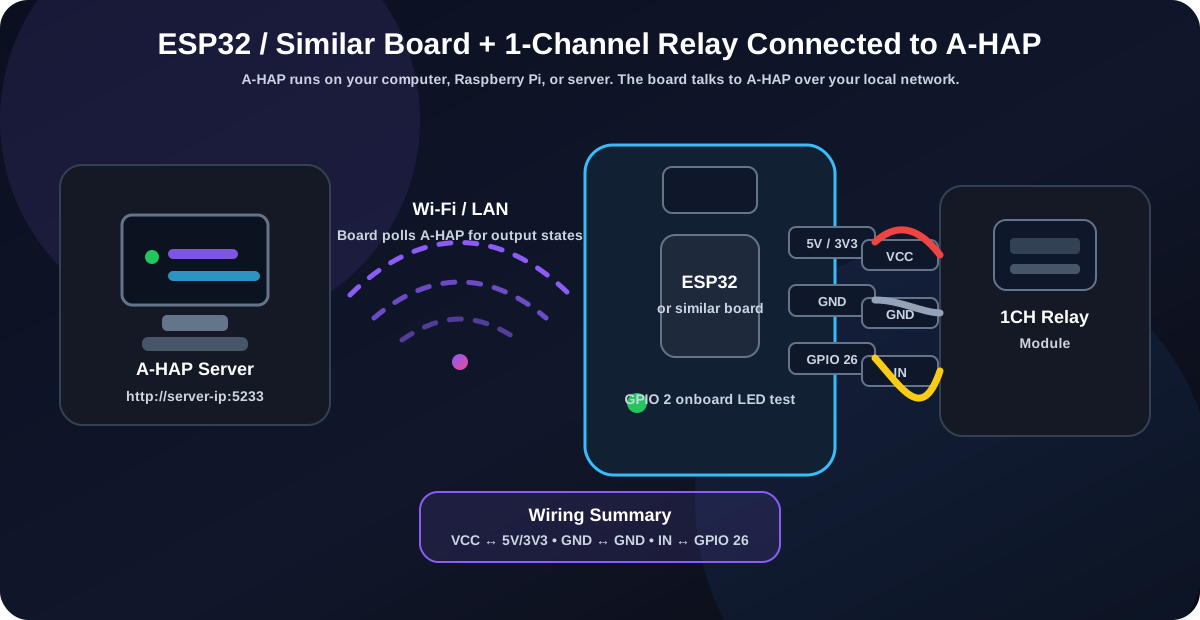
Multi-channel relay boards use the same idea: VCC and GND are shared, and each relay IN pin goes to a separate GPIO configured as an output in A-HAP.
26. This pin will be included in the generated firmware.
2. Use this first to confirm MQTT control before wiring a relay.
Safety note: Many relay modules are active-low, so if ON/OFF appears reversed, check the relay board documentation. Future A-HAP versions are planned to include per-output high/low inversion logic inside the system.
9. Flash the Firmware via USB
This is the only time you need to connect the board via USB. After this initial flash, future firmware updates can be pushed wirelessly via OTA.
- Connect the ESP32 to your computer using USB.
- Open the downloaded
.inosketch in Arduino IDE. - Go to Tools > Board and select the correct ESP32 board (e.g. ESP32 Dev Module).
- Go to Tools > Port and select the correct USB port.
- Click Upload.
- Open Tools > Serial Monitor and set the baud rate to 115200.
The Serial Monitor should show the board connecting to Wi-Fi, then connecting to the A-HAP MQTT broker. Once connected, the board will appear as online in A-HAP.
Some ESP32 boards require you to hold the BOOT button during upload. This depends on the board model.
10. Test Output Control
- Open A-HAP in your browser.
- Go to the role you created for the board.
- Toggle an output ON or OFF.
- The board should respond immediately — there is no poll delay in v3.
When this works, your board is connected via MQTT and receiving output commands instantly from A-HAP.
11. Adding Sensors and Updating Firmware via OTA
Once a board is online, you can add or change sensors and outputs through A-HAP without reconnecting the board via USB.
- In A-HAP, open the role and add sensors or update outputs as needed.
- A-HAP will regenerate the firmware for the board with the new configuration.
- Go to the Board OTA page for the role.
- Click Flash Firmware to push the updated firmware to the board over Wi-Fi.
- The board will receive, apply, and restart with the new firmware automatically.
OTA requires the board to be online and reachable on the network. The board must have been initially flashed with OTA-capable firmware, which is included in all A-HAP generated sketches by default.
12. Troubleshooting
| Problem | What to Check |
|---|---|
| ESP32 does not upload | Check board selection, USB cable, COM port, and whether your ESP32 requires holding the BOOT button during upload. |
| Board connects to Wi-Fi but does not connect to A-HAP | Check that port 1883 (MQTT) is reachable on the A-HAP server. Confirm both devices are on the same network and the server IP in the sketch is correct. |
| Board shows as offline in A-HAP | Check the Serial Monitor for MQTT connection errors. Verify the board ID in the sketch matches the Role ID in A-HAP. |
| Output does not change when toggled | Confirm the GPIO pin number in A-HAP matches what is configured in the role. Check the board is listed as online before testing. |
| OTA flash fails | Ensure the board is currently online in A-HAP. Check Wi-Fi signal strength and that the board's IP is reachable from the server. Some networks block mDNS or local broadcast — use a static IP or DHCP reservation if needed. |
| Relay ON/OFF appears reversed | Many relay modules are active-low. The output state may be inverted compared to what you expect. Check your relay module documentation. Per-output inversion logic is planned for a future A-HAP release. |